
Start with the composition
One photograph can work in a square, a landscape placement and a portrait placement. It cannot use the same composition in all three.
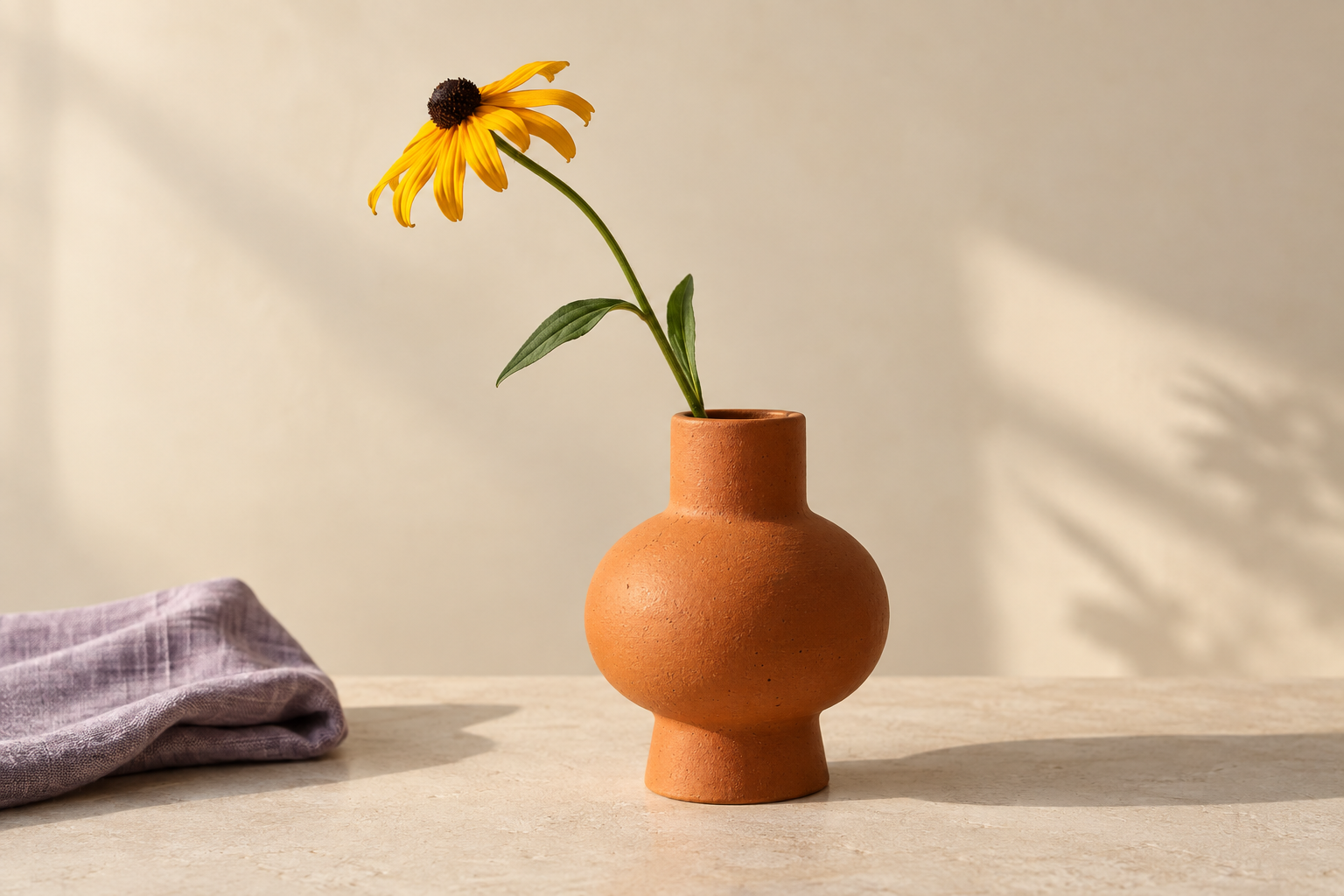
Turning this landscape source into a square removes width from both sides. A wider crop keeps more of the setting. A portrait crop loses most of the scene beside the subject. Preparing the files together makes those differences visible before any one version is handed over or uploaded.
| Crop | Dimensions | What to inspect |
|---|---|---|
| Square | 1000×1000 px | Can the vase and flower stay together without making the frame feel cramped? |
| Landscape | 1200×800 px | Can the wider frame preserve the full subject and enough of the setting? |
| Portrait | 600×900 px | Which side details can leave while the curve of the stem remains clear? |
Choose a source with room to reframe
Cropping removes information. A useful source for several placements usually gives the main subject some space on at least two sides. That space gives the square, landscape and portrait versions somewhere to move.
- The subject is sharp at the source size.
- A hand, product edge or important prop is not already tight against the frame.
- The background can survive being reduced in one direction.
- The photograph is large enough for the intended outputs.
In this source, the main flower and vase fit inside a square. The first 1200×675 landscape test did not: its 16:9 ratio clipped the flower. The final landscape changes to 1200×800, matching the source's 3:2 ratio and preserving the full composition. A requested placement is not automatically the right placement for every photograph.
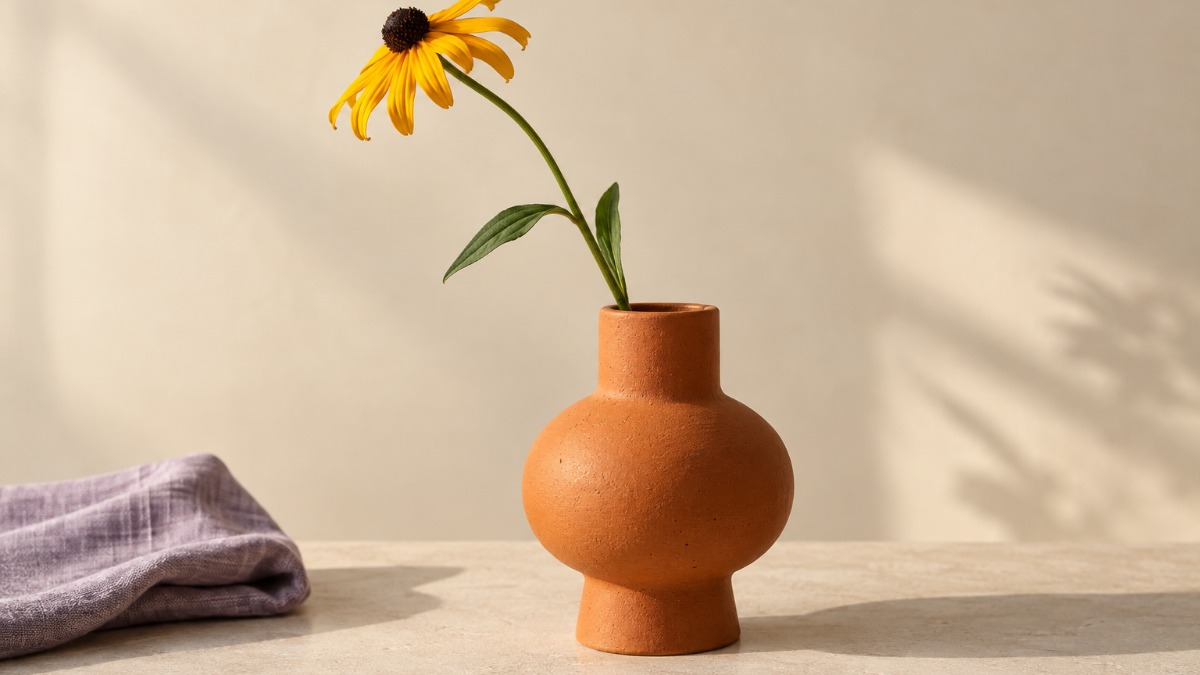
What changes first when this landscape source becomes square?
Width leaves both sides of the landscape source. The vase and flower can remain, but most of the cloth and plant shadow cannot.
Would you hand over the 16:9 version?
No. It clips the flower. For this demonstration, the 1200×800 crop is the stronger choice because its 3:2 ratio preserves the full subject.
A tight group photograph, a wide interior or text photographed near an edge will need similar care. Some source images simply do not contain three strong compositions. Choose another photograph or reduce the number of placements when that happens.
Set the three outputs
Open Batch Cropper and remove any defaults that are not part of the job. Add three custom presets: Square at 1000×1000, Landscape at 1200×800 and Portrait at 600×900. Every loaded photograph is processed at every active preset.
Each preset has its own suffix, file format and quality control. The defaults use JPEG at quality 92. JPEG suits this photographic example. PNG is available when lossless output is more useful, and WebP is available for a web workflow. PNG has no quality slider because its export is lossless.
vase-source-square.jpgvase-source-landscape.jpgvase-source-portrait.jpgSet the presets alongside the photograph so each frame can be judged as part of one job.
Open Batch Cropper →Review the starting crops together
Drop the image anywhere on the window or choose it through the file picker. Batch Cropper prepares a preview for every active preset.
If it detects a face, the starting crop follows the detected face area. Tall crops bias that focus upwards. If no face is found, the tool starts from the centre of the image. This still life has no face, so the centre fallback is the relevant starting point. Treat it as a first pass. The tool does not know that the blossom, vase foot and curved stem must remain together.
- In the square, check whether the vase and blossom stay balanced after most of the cloth and plant shadow leave the frame.
- In the landscape crop, compare the rejected 1200×675 test with the 1200×800 version. The first clips the flower. The second keeps the source's 3:2 shape and the full subject.
- In the portrait crop, preserve the curve of the stem and enough empty wall to keep it legible. The cloth and much of the plant shadow can leave.
Fine-tune each crop
Click a preview to open the crop editor. Use the thirds grid and centre marker as references. Drag the image to change the framing, zoom to control how much of the scene remains, and rotate only when the photograph needs straightening or a deliberate angle. Arrow keys nudge the crop, with Shift increasing the step. Previous and next move through the active presets without closing the editor.
Use the same visual priority across all three crops. The amount of surrounding space can change, but the reader should still know what the photograph is about.
For the square, keep the whole blossom and vase. For the landscape, reject the 16:9 test instead of squeezing the subject into it. For the portrait, remove most of the left and right setting while preserving the stem's arc.
Compare the final exports
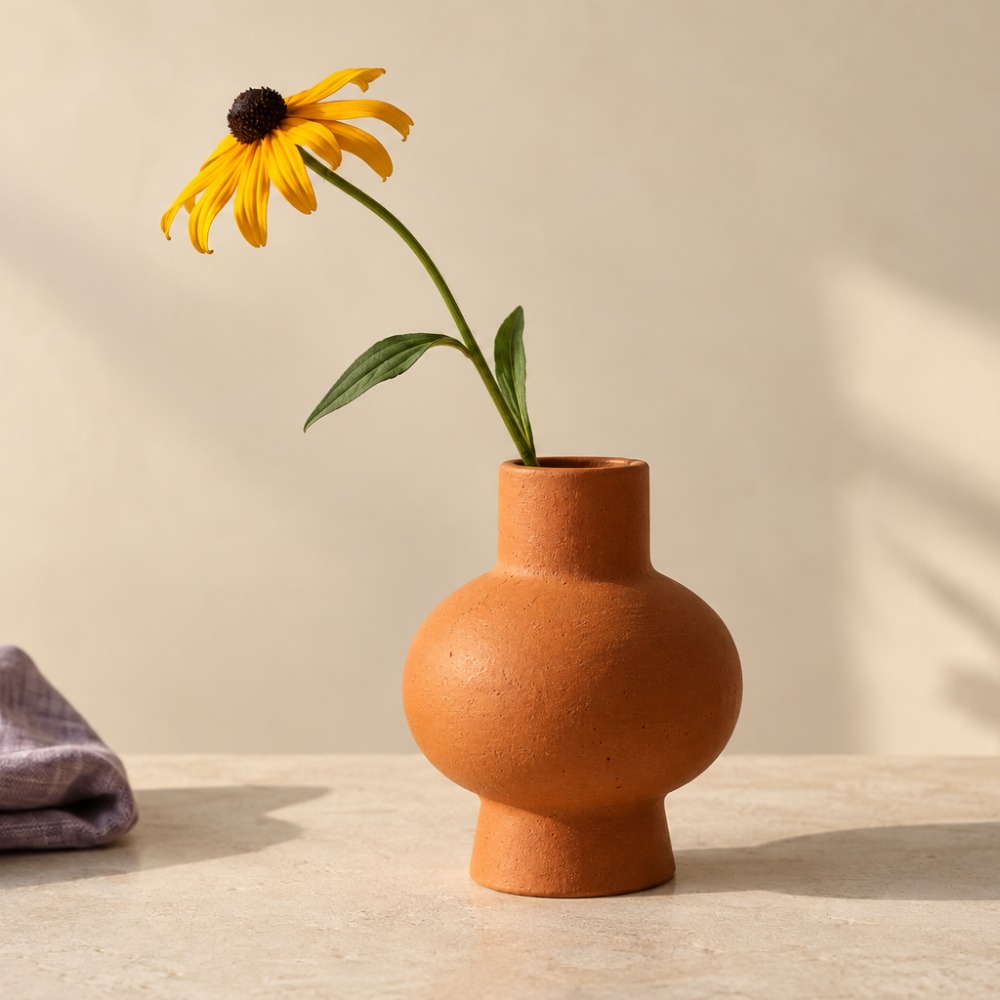
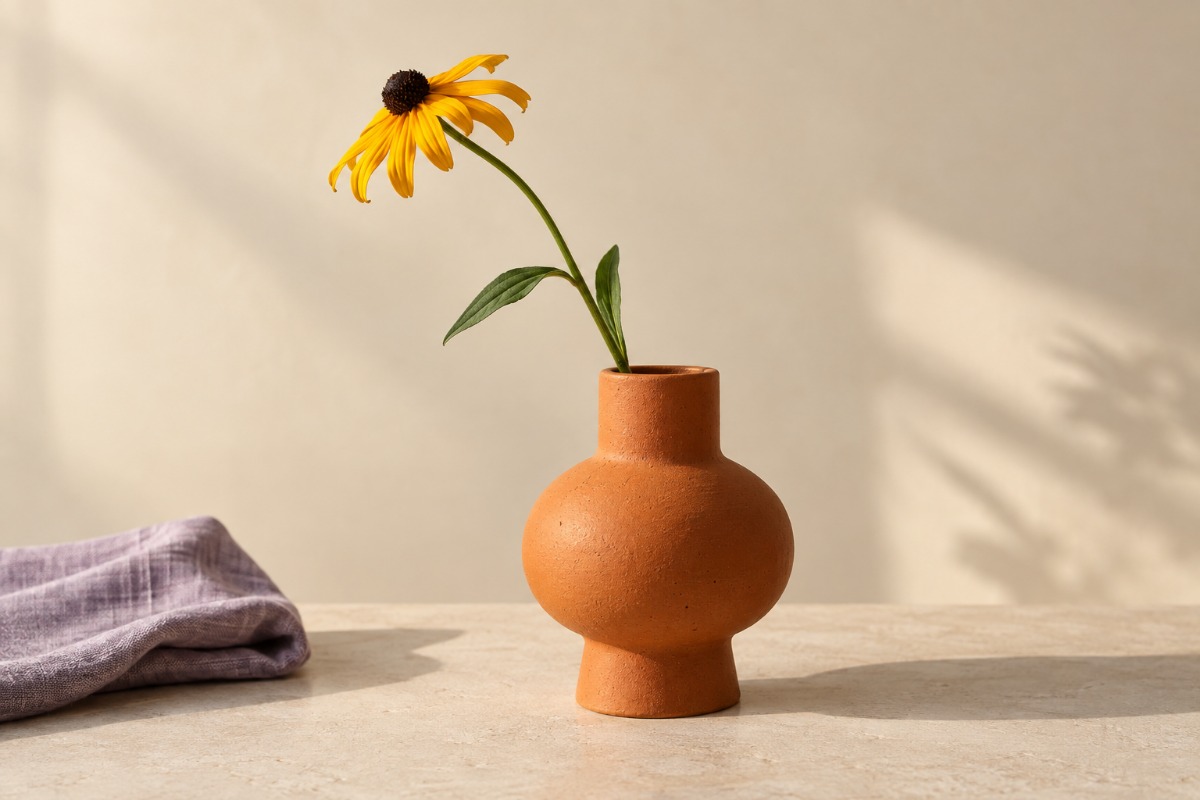
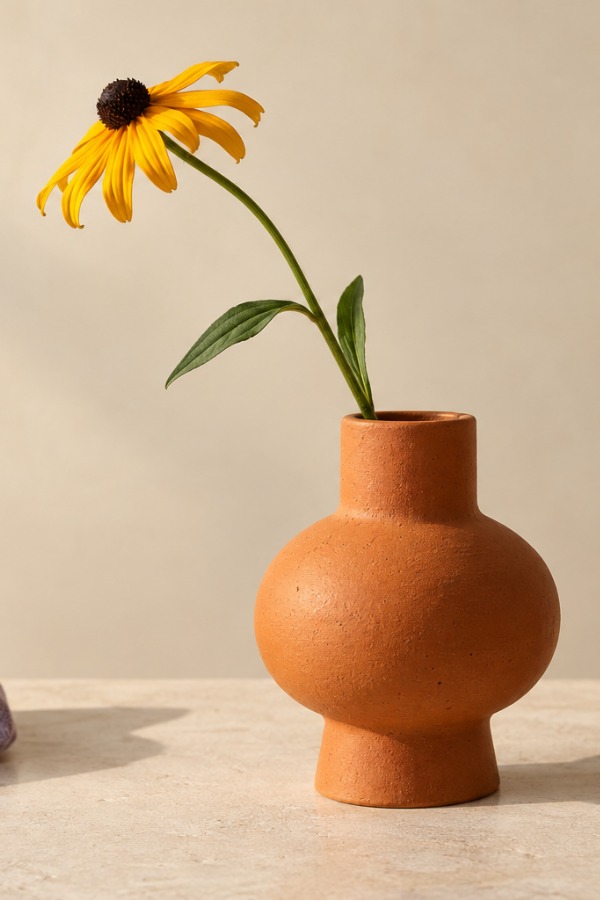
The three outputs share one subject and three different amounts of context. The square keeps the vase and flower as a compact pair. The landscape retains the whole setting. The portrait gives the curved stem more visual work and lets most side details leave.
Export and inspect the ZIP
Edit the source slug before export if the original filename is vague. Then export the set as a ZIP. With one source photograph and these three active presets, the ZIP should contain three images.
- Confirm all three filenames and extensions.
- Check the pixel dimensions.
- View each file at 100 per cent for softness or compression artefacts.
- Compare the exported framing with the preview.
- Open the files in the actual handover or publishing workflow before calling them finished.
| File | Dimensions | Size |
|---|---|---|
| vase-source-square.jpg | 1000×1000 px | 116,761 bytes |
| vase-source-landscape.jpg | 1200×800 px | 116,896 bytes |
| vase-source-portrait.jpg | 600×900 px | 75,640 bytes |
The inspected ZIP is 309,689 bytes and contains those three files.
Where this workflow has limits
Batch Cropper changes framing and output size. It does not reconstruct photographic detail that falls outside the source or understand the full art direction.
Auto-focus can miss a face or favour the wrong one. A centre crop can cut an off-centre subject. Heavy zooming can upscale a small source. Rotating or zooming out far enough to expose the canvas fills the uncovered area with a gradient sampled from the photograph's top and bottom edges. Inspect that fill deliberately when it appears.
The tool runs in the browser and exports JPEG, PNG or WebP. The platform receiving the file may resize, crop or compress it again. Its current rules are the final check.
Build the outputs together, compare each composition, then inspect the exported files before they leave your device.
Prepare the crops in Batch Cropper →Further reading
- Adobe: Crop tool options
Primary guidance on choosing crop ratios and setting defined output dimensions.
- Adobe: Crop photos
Primary guidance on moving and rotating a crop box to change the composition.
- Funky Batch Cropper
Current product details for JPEG, PNG and WebP output, preset controls and ZIP export.